QuickBooks Online
Connect QuickBooks Online, map the property records, choose what to sync, and resolve activity that needs attention.
#Where it stands in TenantPoint
QuickBooks Online is included with Portfolio and Professional plans; Custom access follows the agreement. It is not included on Owner or trial plans. A customer Owner or Admin connects the workspace's QuickBooks company in Settings → Integrations. You also need permission to authorize that company in Intuit. TenantPoint sends selected accounting activity one way; it does not replace your QuickBooks ledger or automatically import the entire ledger into TenantPoint.
#1. Connect and confirm the company
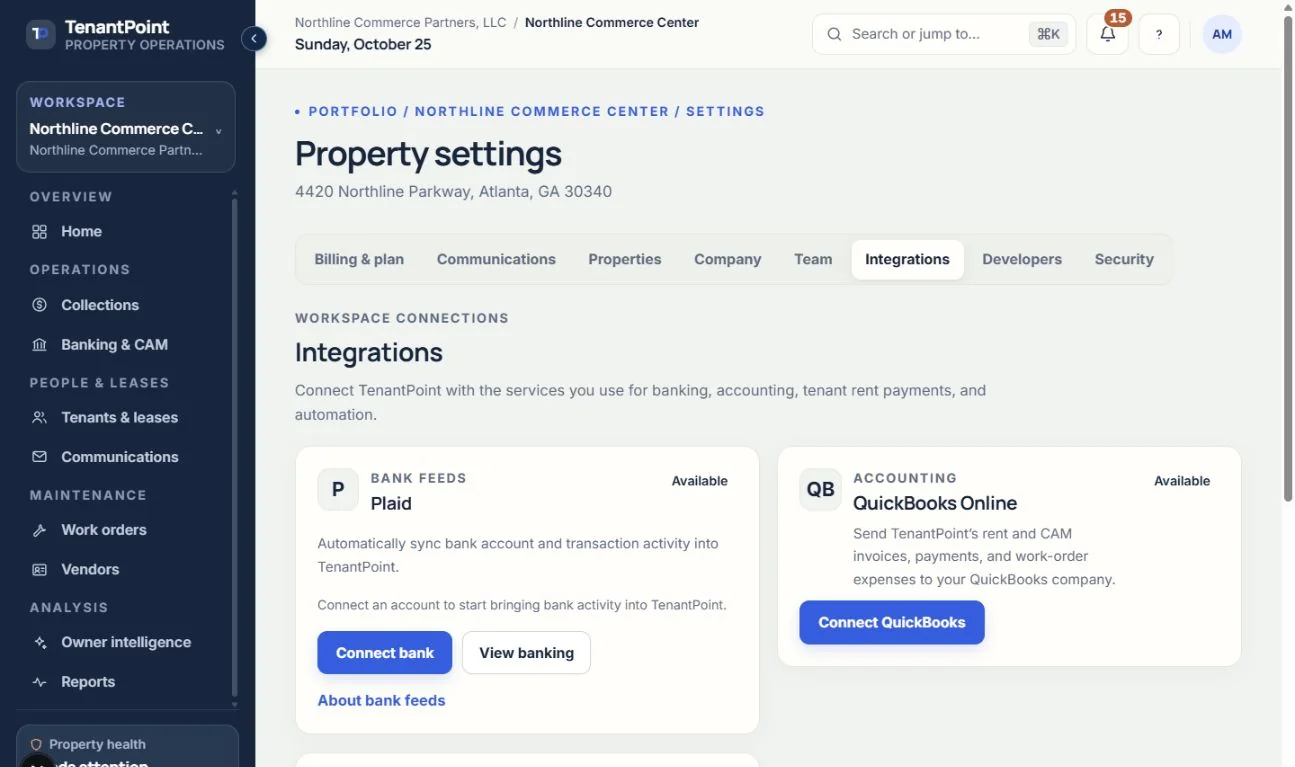
Open Settings → Integrations, find QuickBooks Online and choose Connect. Complete Intuit authorization in the same browser session and confirm that the company shown is the one intended for this workspace. A company already connected elsewhere may not be available for a second workspace.
#2. Complete the mapping wizard
Choose property tracking by Class, Location, or not at all, then map properties, income categories, expense categories, tenants and vendors. Use existing QuickBooks records where appropriate so you do not create duplicates. In Accounts choose the deposit account for payments and the bank or credit card account paid work-order expenses come from. Review the choices and choose Activate QuickBooks. Reopen Mappings later to maintain them.
Activating the connection does not send everything immediately. Sending starts only according to the choices in Sync Settings.
#3. Choose what to send and review the first run
Open Sync Settings on the QuickBooks card. Invoice sending, payment sending and work-order-expense sending start off. Choose manual invoices or automatic monthly invoices, then enable only the payment and expense flows you intend to use. Review the mapping and date period before using Sync Now.
Sync Now sends the displayed month's rent and CAM invoices, eligible back-billed months, and payments or work-order expenses when their switches are on. Payments wait for the associated invoice and expenses need their property, category and work-order link. Review Sync Activity for the result rather than assuming every record was sent.
#Expected result and troubleshooting
The card shows Connected and completed setup; Sync Activity distinguishes sent activity from records needing mapping or attention. Resolve Needs mapping through Mappings and review Conflicts deliberately before retrying. Do not independently recreate an entry in QuickBooks while TenantPoint is retrying the same activity.
If authorization expires, use Reconnect. If the plan is no longer eligible, sending stops. Disconnect stops new sending but does not delete previously synced entries in either system. If the connection is unavailable, use the relevant CSV exports and speak to support; a bank-feed connection is not a QuickBooks connection.
#How property software and QuickBooks fit together
Property software works from the leases: who owes what, when, and why, from rent steps and CAM to late fees and lease ends. QuickBooks keeps the books your accountant works from: the chart of accounts, bank reconciliation, and tax-ready reports. Most small commercial owners use both, with the lease-level detail in the property system and the accounting entries in QuickBooks.
#Setting up QuickBooks for commercial property
A few choices make the books easier to read by building:
- Track each property with Classes or Locations, so income and expenses can be reported per building.
- Keep separate income accounts for base rent, CAM recoveries, and other charges such as late fees.
- Record security deposits as a liability you owe back, not as income.
- Make sure each deposit is entered once, even when a bank feed and your property records both show it.
#Optional CSV handoff
Download CSV files and bring the figures into your books: payments from Collections (Download payments (CSV)), and from Reports, the transactions CSV, the operating statement, income by space, AR aging and open balances. See Integrations available in TenantPoint.
See the current workflow
These captures use controlled sample or internal demo records, not customer records. Available controls depend on your role, plan and account readiness.