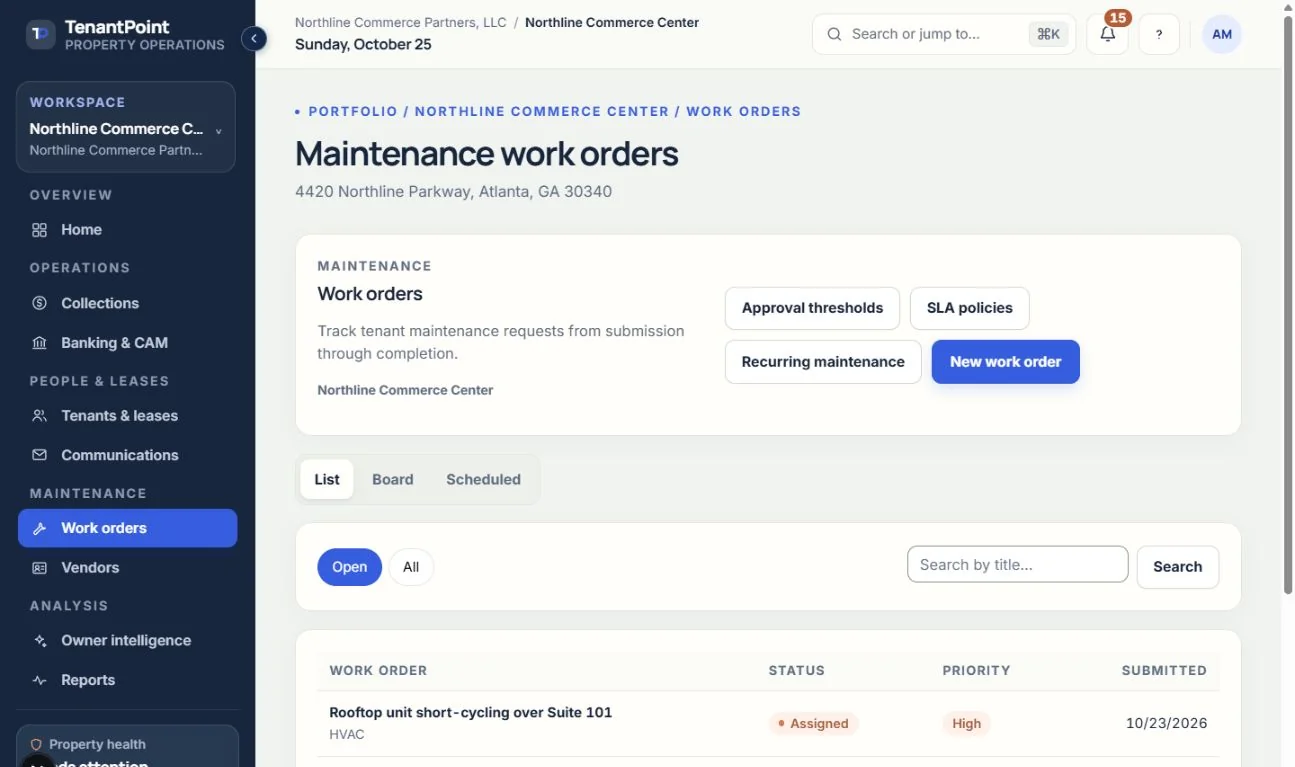
Creating a work order
Logging a repair yourself, or receiving one from a tenant.
#From your side
In Work orders, press “New work order” and fill in the title, category, tenant (leave it blank for a common-area job), description, access instructions, and priority (blank uses the category's default). Tick “Flag as emergency” when it can't wait.
#From a tenant
Tenants invited to the tenant portal can submit requests themselves, with photos and access notes. These arrive as new work orders. See Tenant portal.
#Repeat issues
If a new request looks like an earlier one, a “Possible repeat issue” banner appears, and “Link as follow-up” connects the two.
#Views
Switch between List, Board (each card has a “Move to…” menu), and Scheduled (upcoming visits by day). The tiles across the top show Open, Overdue, Emergencies open, and Avg. time to close. Work orders follow the property selected in the property menu at the top. With more than one property, the Work orders screen also has its own Property picker, and new work orders and recurring maintenance are created for that property. Vendors are shared across your portfolio.
See the current workflow
These captures use controlled sample or internal demo records, not customer records. Available controls depend on your role, plan and account readiness.