Reviewing and reconciling transactions
Allocation types, CAM eligibility, work-order links, and rules.
How this works today. TenantPoint is reviewing how an expense allocated to one tenant should be billed. This article describes how it works today and will be updated if that changes.
#Step by step
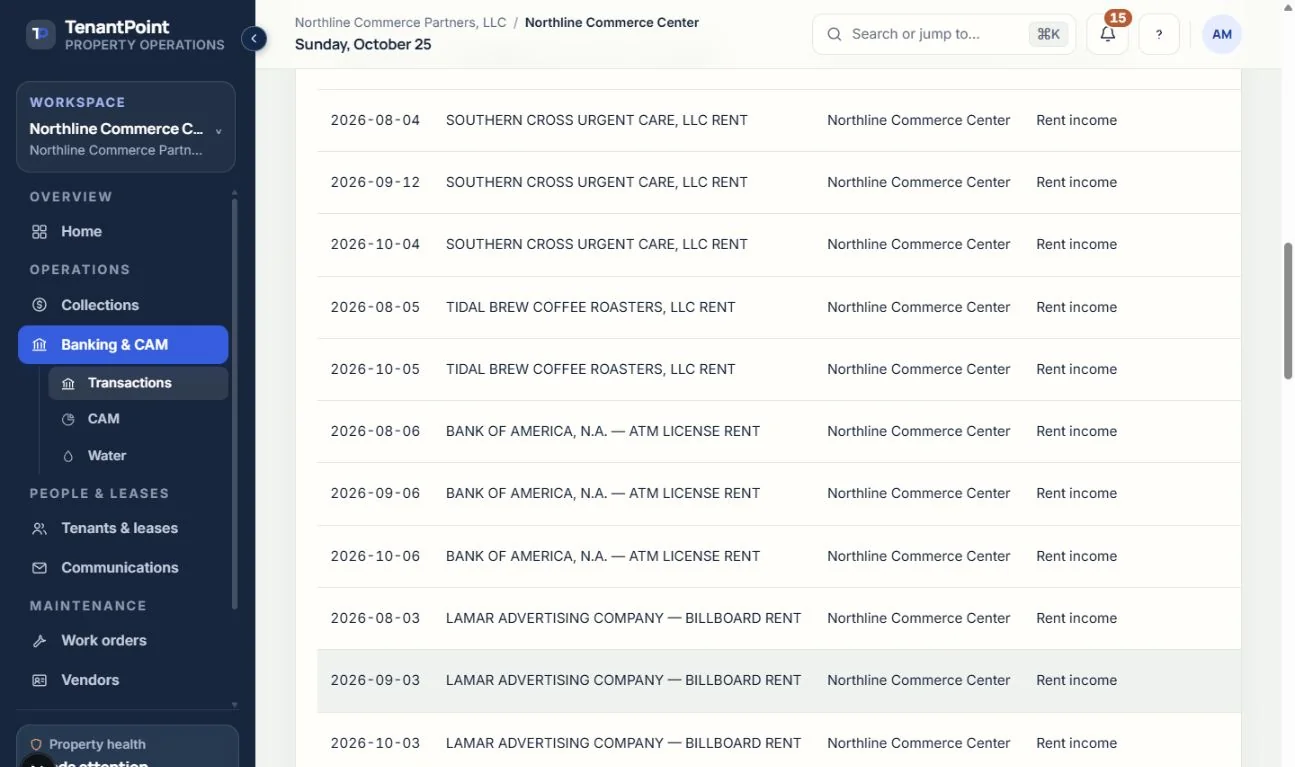
Banking has four tabs: Review, Transactions, Cash flow, and Rules. In Review, each transaction is taken step by step: property, category, any possible rent match (“Match”), then allocation. Use “Review the impact” to check it, then “Confirm allocation →”. You can also Skip or Ignore a transaction, and Undo is offered for a few seconds after confirming.
#Deposits you already recorded
If you recorded a payment in Collections before its deposit reached the bank, the deposit's review card lists that payment under “Looks like a payment you recorded”: the same amount, within 14 days of the payment's Received date, and the same tenant when the deposit names one. Each shows the tenant, the amount, the date, and how it was paid. “Link to this payment” reconciles the deposit to that tenant and links the two, without adding another payment, so the money is counted once. Undo works the same as after a confirm. This suggestion is never applied on its own, even when a saved rule or “Auto-match high-confidence payments” would otherwise handle the deposit: it waits in Review (with the rule's tenant filled in, when a rule matched it). If the payment you recorded isn't listed (for example, it's more than 14 days from the deposit), confirming that tenant links it the same way, without adding another payment. A payment you recorded as returned (NSF) is never offered.
#Allocation types
A deposit you allocate to one tenant, or to selected tenants, is recorded as their payment (split evenly between selected tenants).
For an expense, the allocation and the “CAM eligible?” answer do different things:
- HOUSE — property-level spending you keep.
- All tenants (shared through CAM) — a shared cost. Each enrolled tenant pays it by their CAM share, not in equal parts.
- One tenant or Selected tenants — records who the cost relates to. TenantPoint doesn't bill the cost to that tenant, and it can't be put in CAM.
- “CAM eligible?” is asked for HOUSE and All tenants expenses only. Yes puts the expense in CAM at the Recoverable % you set, in the CAM pool you choose. In an explicitly converted year, only confirmed participants in that pool share its expense, subject to their categories and caps. Legacy years retain their existing sharing calculation. No keeps it out of CAM. You need at least one CAM pool to answer it.
#Costs that belong to one tenant
TenantPoint doesn't yet have a way to bill one tenant directly for an expense. A cost you allocate to one tenant or selected tenants is recorded as your expense and kept out of CAM, so the other tenants don't pay part of it.
A one-tenant cost that was marked CAM eligible before this change still counts in CAM, exactly as before, until you take it out: open it in Banking and choose to take it out of CAM, or change its allocation. Each one is listed under CAM review on the CAM screen.
Only allocated, reconciled transactions feed CAM and cash-flow numbers.
#Linking a repair bill
During review, an outgoing payment can be linked to a work order (search by its title), so the bill and the job stay connected.
#Capital improvements
An expense can be marked as a capital improvement, such as a new roof or a parking lot repaving: answer “Capital improvement?” during review, or use “Mark as capital improvement” under its category on the Transactions tab. On the Reports operating statement it shows below net operating income, not in operating expenses. Marking it changes nothing in CAM, and it can be marked from the Transactions tab even after that year's CAM has gone out.
Choosing the “Capital improvement” category marks the transaction as a capital improvement too, and so does a saved rule putting it in that category. Transactions already in that category have been marked. Moving a transaction out of “Capital improvement” into another category takes the mark off. You can also take the mark off one and leave it in the category; it then counts as an operating expense, and Reports points it out.
#Creating a category
If none of the categories fits, choose “+ Create a new category” during review, type a name, and choose whether it's Income or Expense. The Reports operating statement follows that choice: a withdrawal in an Income category isn't counted as an operating expense, and a withdrawal in an Expense category is. Money coming in to a category you created counts as other income either way. The choice is made once, when you create the category, and the category list shows it next to the name.
Categories you created before this choice existed count as Expense.
#Save it as a rule
Tick “Remember this description and allocation next time” and future transactions with a matching description are handled the same way. Edit or delete rules on the Rules tab.
See the current workflow
These captures use controlled sample or internal demo records, not customer records. Available controls depend on your role, plan and account readiness.