Properties and spaces
Adding a property, switching between them, and classifying spaces.
#Before you start
Have the property's name, address and suite list ready, and check your role and plan capacity. Classify spaces accurately: a vacant suite is not a tenant and HOUSE is not a tenant payment account. Confirm the selected property before editing.
#Switching
The property switcher at the top of the sidebar moves between properties. Every screen shows whichever property is selected.
#Adding and managing
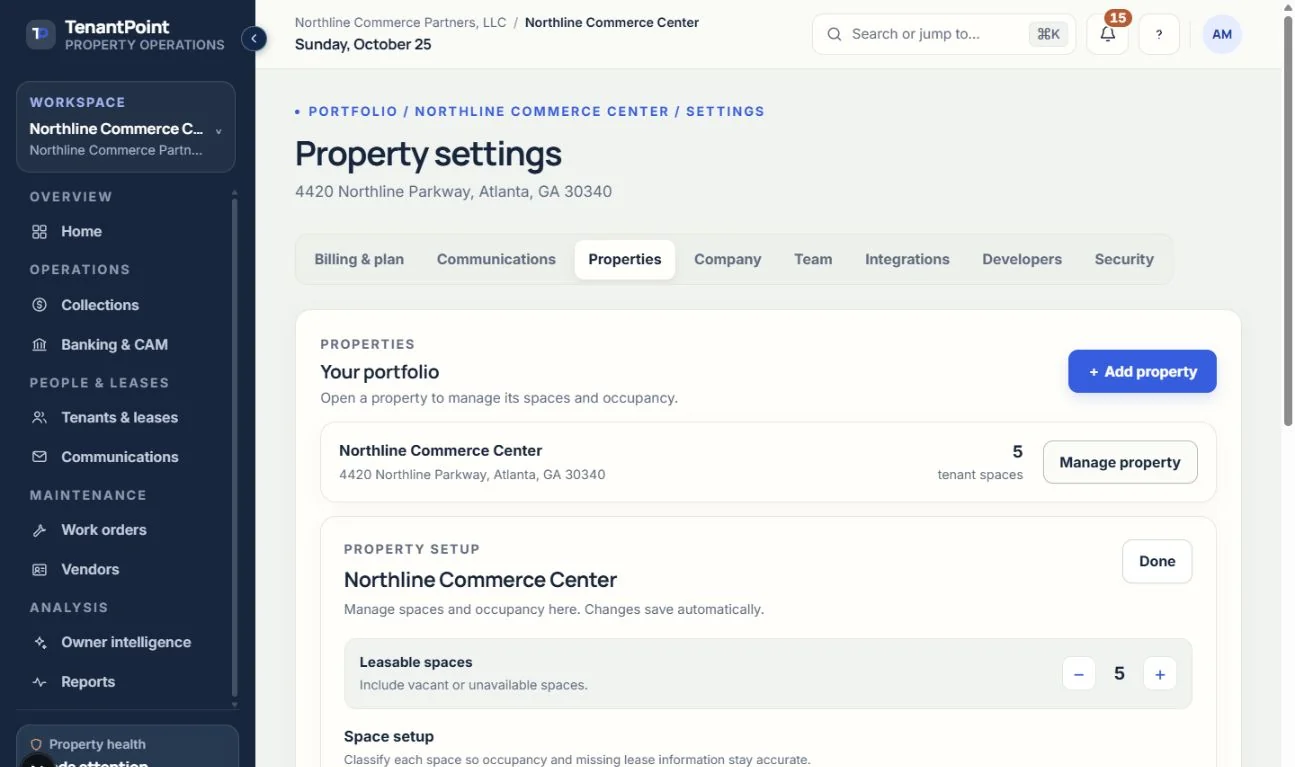
In Settings → Properties, use “+ Add property” or “Manage property”. Spaces can be added or removed and each gets a status: Occupied · lease verified, Occupied · lease missing, Vacant, Owner, HOUSE use, or Under construction / unavailable. Going past your plan's property count offers a property add-on.
#Expected result and troubleshooting
The property appears in the switcher and its spaces have the intended status. Check the tenant record and verified lease for occupied suites, rather than changing a space name to work around a missing lease. If adding is unavailable, review role and plan capacity; do not duplicate a property to repair a display issue.
See the current workflow
These captures use controlled sample or internal demo records, not customer records. Available controls depend on your role, plan and account readiness.