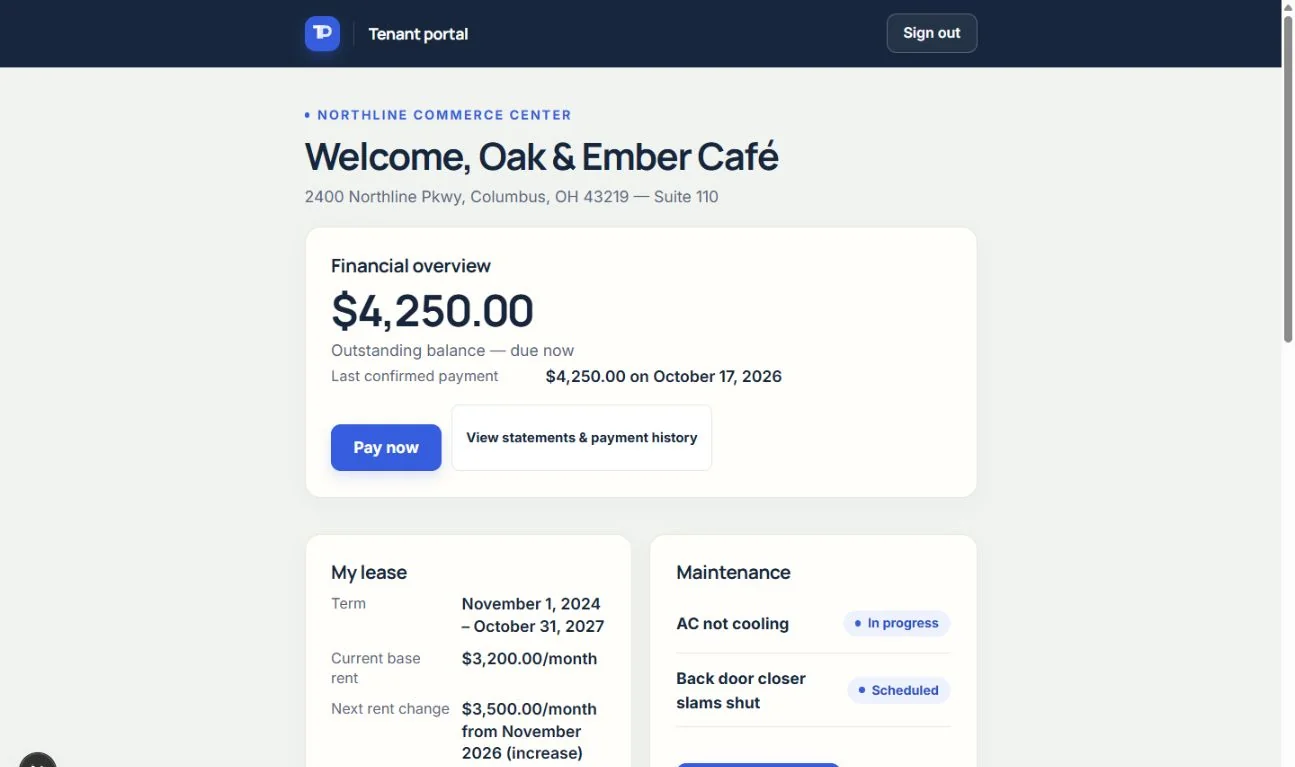
What tenants can do in the portal
Reporting an issue with photos, and following it to completion.
#Reporting an issue
“Report an issue” walks the tenant through five steps: the issue and category, details and priority, access notes (for example, call ahead or a key at the front desk), optional photos, and a final review. Anyone marking it an emergency is told to call 911 first for anything life-threatening. The request arrives in your Work orders as Submitted, shows on Home and in the bell until it's triaged, and is emailed to your notification address with a link to it (when email delivery is set up). The tenant's confirmation says their property manager was notified only when that email went out.
#Following progress
The portal home lists the tenant's open requests. Opening one shows its status, photos, and an Updates timeline with any note you mark “Visible to tenant”, and the tenant can add a note back to you. Internal notes and attachments stay hidden.
See the current workflow
These captures use controlled sample or internal demo records, not customer records. Available controls depend on your role, plan and account readiness.