Inviting a tenant to the portal
How tenants get access, and how they sign in without a password.
#Before you start
Confirm the selected property and tenant, check the contact email and review what should be shared. You need edit rights to send an invitation. Portal access is separate from a workspace team seat; do not invite a tenant as an internal teammate just so they can see rent information.
#Sending the invite
On the tenant's Overview tab, choose “Invite to tenant portal”. The tenant needs a contact email, and you need edit rights. The sign-in link is only ever emailed to the tenant, never shown to you, because it opens their account. If the email can't be sent, you'll see an error and can try again later.
#How tenants sign in
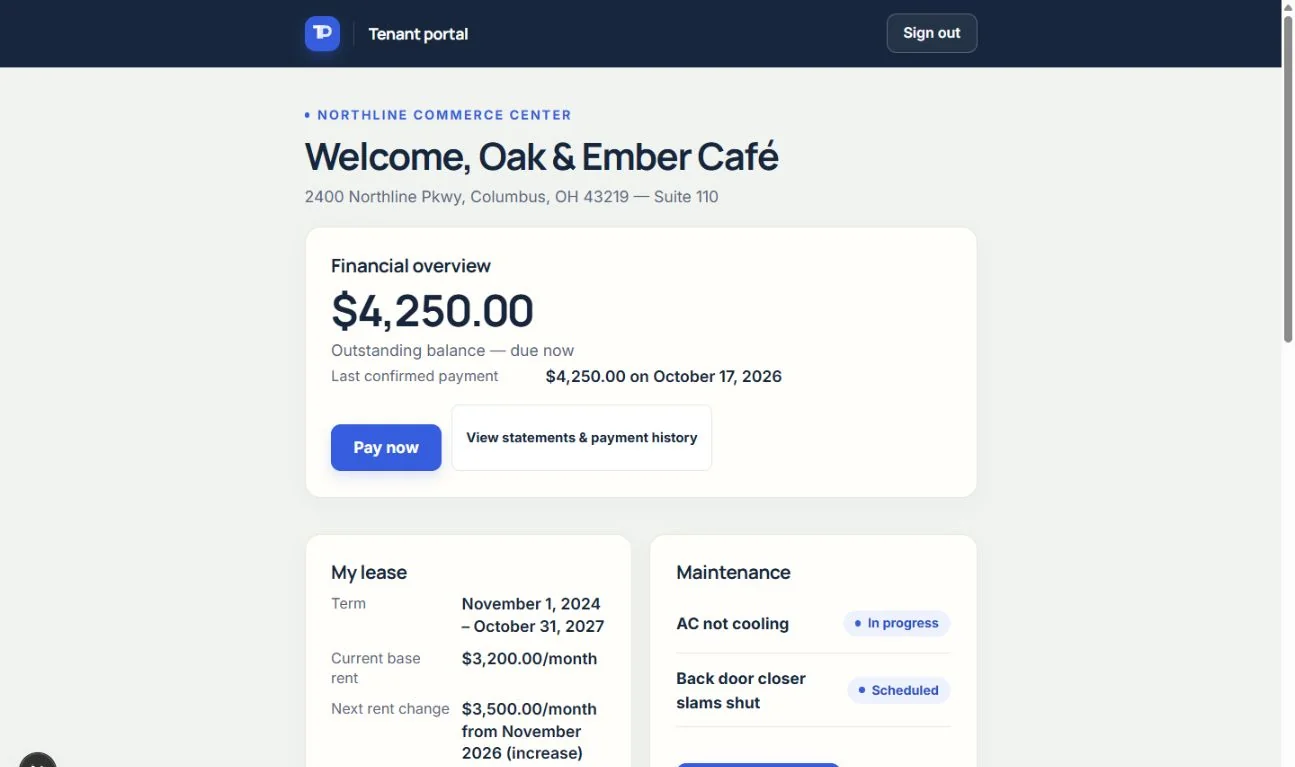
Tenants sign in with a link emailed to them. There's no password to remember, and they can request a fresh link from the portal sign-in page. Each tenant sees only their own space at their own property.
#Expected result and troubleshooting
The invitation is delivered to the tenant's contact email and the tenant can request a fresh sign-in link from the portal login page. If it does not arrive, confirm the address and delivery error before resending. Do not ask the tenant to forward a usable sign-in link to you.
On the tenant's Overview tab, review Portal access and its section checkboxes. Payment access alone does not activate bank collection: the landlord also needs an eligible plan and completed Stripe setup in Settings → Integrations. See Set up tenant ACH payments and Online rent payments.
See the current workflow
These captures use controlled sample or internal demo records, not customer records. Available controls depend on your role, plan and account readiness.