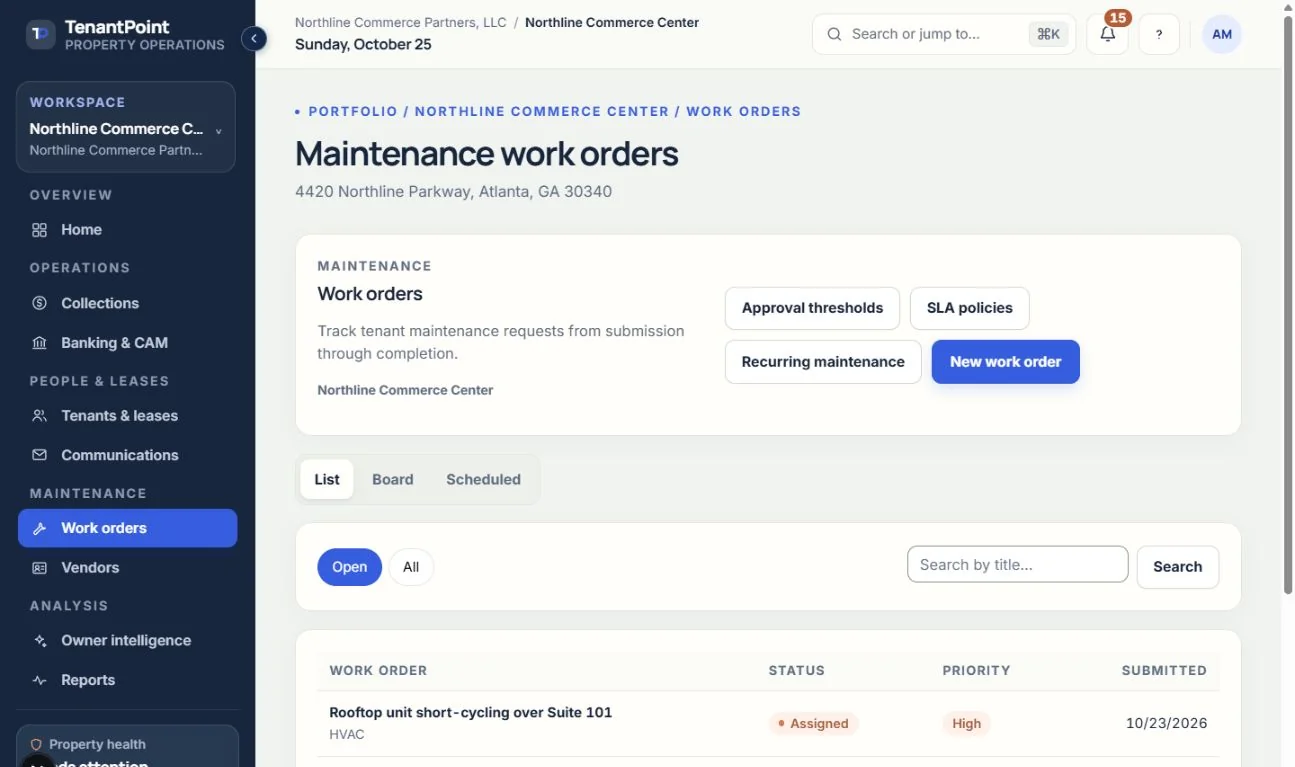
Moving a work order to done
Statuses, assigning a vendor, estimates and approval, notes, and attachments.
#Statuses
A work order moves through Submitted, Triaged, Assigned, Scheduled, In progress, On hold (with a reason), Pending tenant, Pending approval, Completed, Closed, and Cancelled. You move it with “Move to”, so nothing changes status on its own. Reopening a closed or cancelled work order asks for a reason.
#Assigning and scheduling
Assign the job to a vendor from your list or to your own staff, and optionally book a visit date.
#Estimates and approval thresholds
“Record estimate” captures a quote, which you then Accept or Reject. Under “Approval thresholds” you can set a dollar limit for the whole portfolio or per category. Accepting an estimate above it takes an Owner or Admin and a written reason.
#Notes, photos, and what the tenant sees
Attach photos or PDFs (PNG, JPG, WebP, HEIC, or PDF, up to 15 MB) and add notes to the timeline. Mark each one “Internal only” or “Visible to tenant”. When email sending is set up for your workspace and the work order has a tenant with an email address, the tenant is emailed when it moves to Scheduled, In progress, On hold, Pending tenant, Completed, Closed, or Cancelled, and when you add a note visible to them.
#Who can do what
Read-only teammates can view work orders. Managers can create, assign, and comment. Closing, reopening, setting thresholds and SLA policies, and approving above a threshold are Owner and Admin actions.
See the current workflow
These captures use controlled sample or internal demo records, not customer records. Available controls depend on your role, plan and account readiness.