Your first week, step by step
The important features in the order to set them up, with the article to read for each.
#1. Create the property
Choose “Set up my company” to start the real setup wizard, or “Explore a demo” to look around with fictional records first. For real setup, enter your company, property address and tenant spaces, then review before creating the workspace. Read: Setting up your first property, and Properties.
#2. Upload and verify each lease
Upload the lease PDF. TenantPoint reads it and proposes the terms, and you check every field before “Verify & create tenant →”. Read: Uploading and verifying a lease.
#3. Check each tenant record
Open Tenants & leases and check contacts, the rent schedule (including “CAM still owed” on any free-rent months), and the Important clauses tab. Read: The tenant record, and Rent steps and the rent schedule.
#4. Confirm each lease's late-fee terms
Until you confirm a lease's late-fee terms, Collections charges no late fee and no returned-payment fee for it. Do this once per lease. Read: Confirming late-fee terms.
#5. Record this month's rent
In Collections, mark rent paid (with the date it arrived and how it was paid) or record a partial payment. Read: Recording rent payments, and Late fees: assessing and waiving.
#6. Bring in bank activity
Open Settings → Integrations to review Plaid bank-feed availability, or use Banking & CAM → Transactions to review activity. An Owner or Admin connects eligible accounts and assigns their property and purpose. Manual CSV, OFX or QFX statement imports are optional and must be enabled in Integrations. The trial includes one statement import. Read: Connecting a bank account, Uploading a bank statement, and Reviewing and reconciling transactions.
#7. Set up CAM
Choose how you bill CAM and how it's split, then review actual spending and next year's tenant amounts. Read: CAM setup, Actual CAM, and Setting next year's tenant CAM.
#8. Set up maintenance
Add your vendors, invite tenants to the tenant portal, and create or receive your first work order. Read: Vendors, Creating a work order, and Inviting a tenant to the portal.
#9. Set up communications
Add your logo, sender name, and templates, then review the notifications and automations you want. Collections automations create drafts for review; separately enabled portal, insurance, water, and work-order notifications may send automatically. Text delivery also depends on messaging availability and consent. Read: Templates and workspace branding, Collections automations, and Communication safeguards.
#10. Read the owner view
Check the rent roll, Owner intelligence, the operating statement, and the open balances report. Read: The true rent roll, Owner intelligence, Operating statement and NOI, and Open balances report.
#11. Secure the workspace and invite your team
Turn on two-step verification, then invite teammates with the right role. Read: Two-step verification, Roles & permissions, and Team & access.
See the current workflow
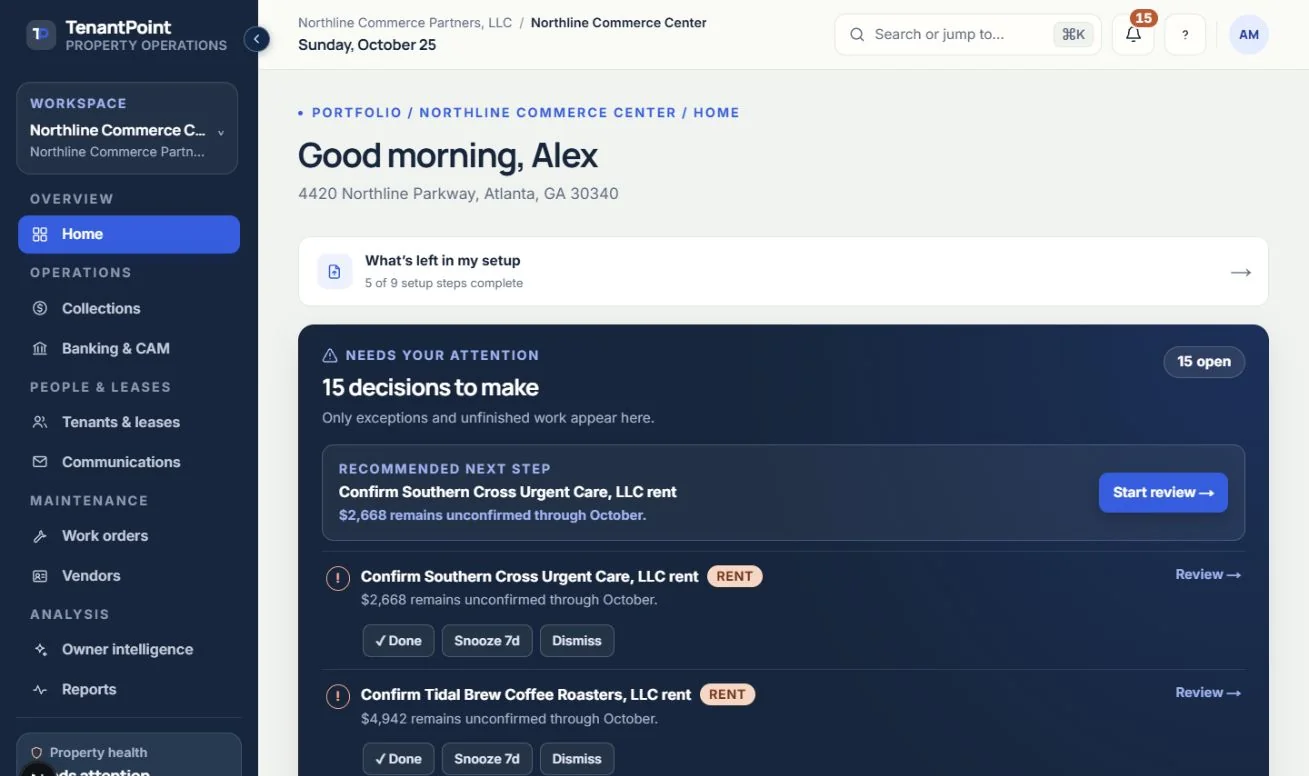
These captures use controlled sample or internal demo records, not customer records. Available controls depend on your role, plan and account readiness.