What tenants can see, and how to limit it
The portal's sections, turning them off for one tenant, sharing documents, and revoking access.
#What the portal shows
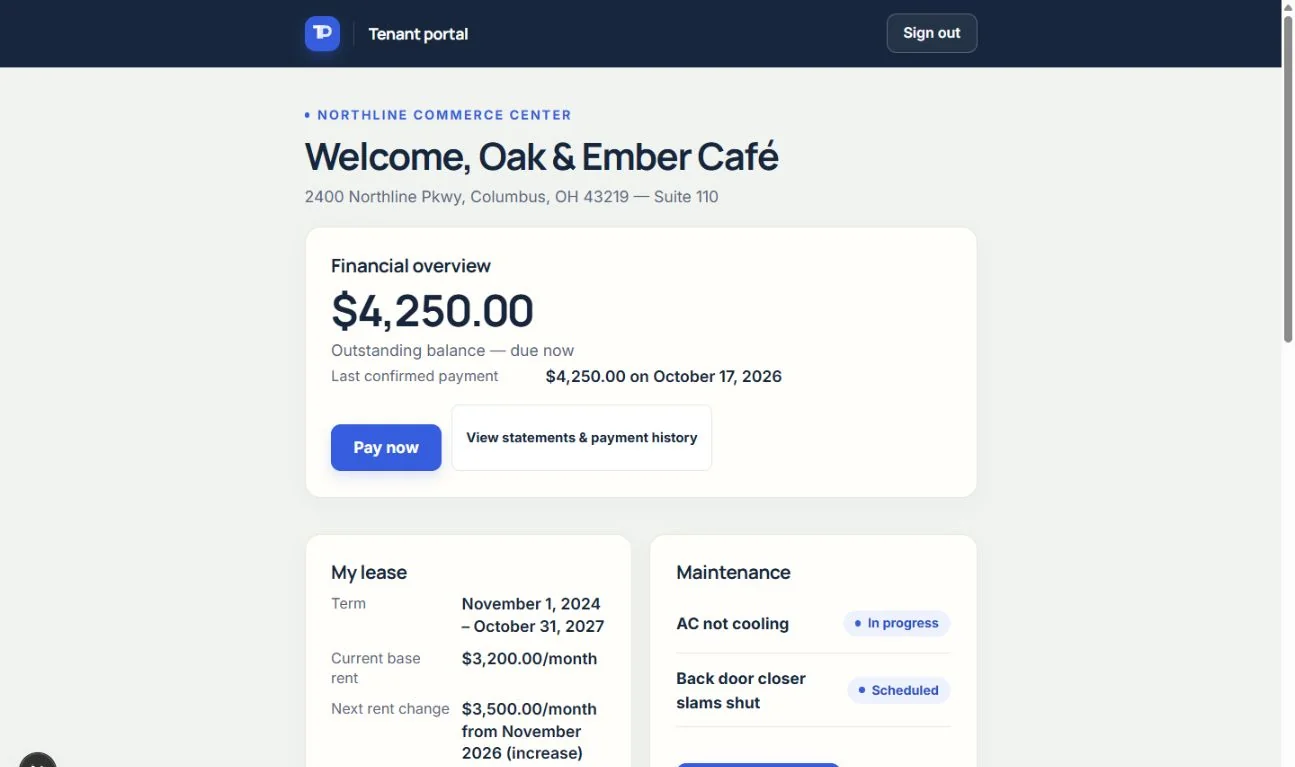
A tenant with portal access can see their lease terms and rent schedule, their signed lease documents and any document you share with them, their balance, payment history and monthly statements (which they can download as a CSV or PDF), their maintenance requests, their insurance certificate, and their water usage. Balances use the same ledger as Collections. A tenant normally has one lease on file; if a tenant has more than one, the portal prices the most recently added lease, so compare that tenant's figures with Collections. Eligible tenants can pay an outstanding balance by bank through Stripe after the landlord completes payment setup; see Online rent payments. Portal sections remain subject to the access you grant that tenant.
#Turning sections off for one tenant
On the tenant's Overview tab, Portal access lists everyone who can sign in for that tenant, with a checkbox for each section. Untick a section to hide it; Property & contact details covers the property's address, the suite and the contact details on the portal home. The change applies the next time the tenant opens a page, and the tenant's records aren't touched. At least one section has to stay on. To remove access entirely, choose Revoke: the tenant is signed out and can no longer sign in to the portal, nothing in your records is deleted, and you can invite them again later.
#Sharing documents
Portal documents, on the same tab, shows the lease documents the tenant always sees and any you've shared. Pick another document of the tenant's property under “Share a document…” and choose Share; choose Remove to stop sharing it. The document itself stays in your workspace either way. A lease document, final statement or insurance certificate is offered only once it's attached to this tenant on the tenant's Documents tab, and a document attached to another tenant is never offered.
See the current workflow
These captures use controlled sample or internal demo records, not customer records. Available controls depend on your role, plan and account readiness.