Connecting a bank account
Connect eligible bank accounts through Plaid, assign their property and purpose, and review transactions without confusing bank feeds with rent payments.
#Before you start
An Owner or Admin manages bank connections. Open Settings → Integrations and check the Plaid card for this workspace's availability and connection status. Availability also depends on the financial institution and your workspace's access; a plan allowance does not guarantee a particular bank connection. If connection is not offered, you can still use manual statement imports when enabled.
#1. Connect and choose accounts
From the Plaid card choose Connect bank, or open Banking and its Connected accounts area and choose Connect bank account. Complete the bank's connection flow and select only the accounts you want TenantPoint to read. Do not send bank credentials to TenantPoint support.
Assign each account to a property or Corporate / portfolio-level, then choose its purpose: Operating, Security deposit, CAM, Reserve, Corporate, or Other. A corporate account's transactions may need a property assigned during review.
Plaid supplies bank account and transaction data. It does not collect tenant ACH payments in TenantPoint; tenant payments use the separate Stripe connection.
#Why it matters for commercial property
Bank activity is where rent, CAM and property expenses meet. Whether it arrives by feed or by statement, reviewing it promptly helps you:
- Match each rent deposit to the tenant and month it pays, so open balances stay right.
- Keep operating, security deposit, CAM and reserve accounts apart.
- See which expenses are recoverable through CAM as they clear, instead of sorting a year of spending at reconciliation time.
- Close each month with every transaction accounted for once, with no gaps and no duplicates.
#2. Review transactions and connection health
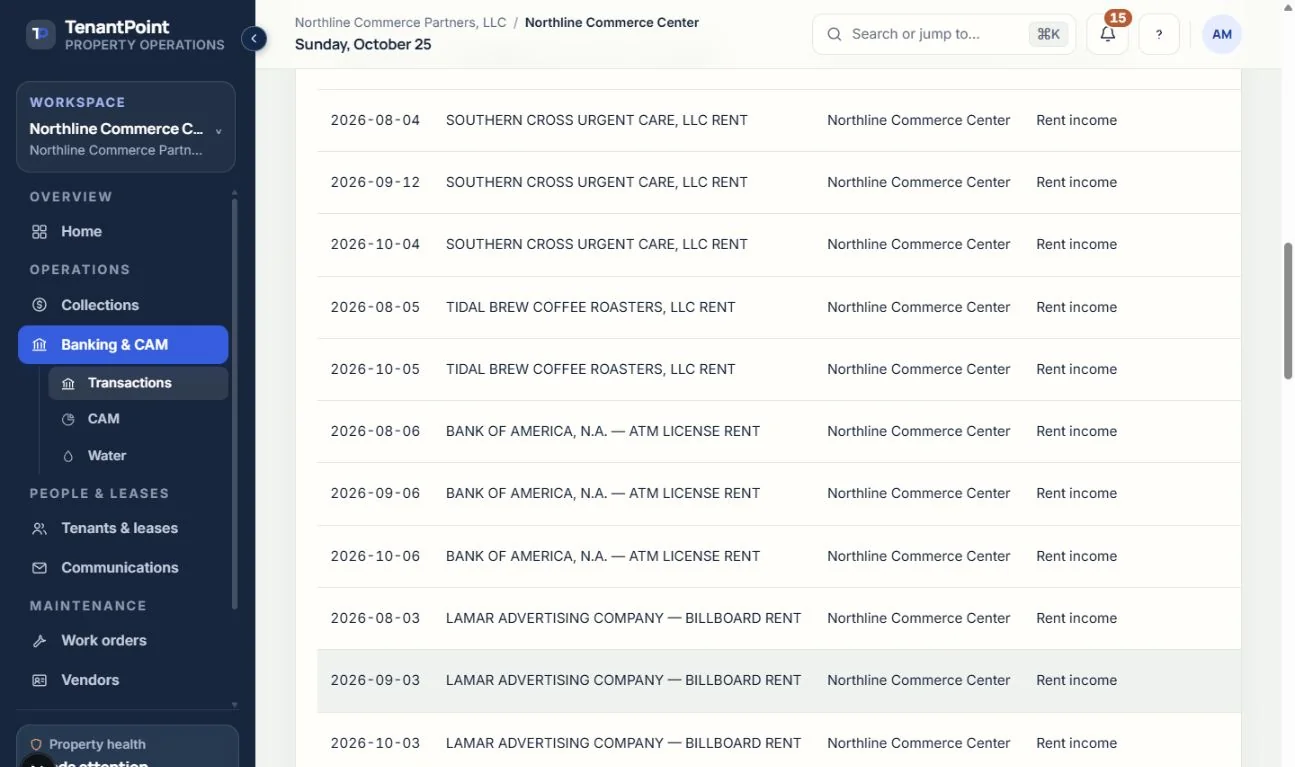
Open Banking & CAM → Transactions to categorize and allocate the imported activity. A connected feed is not a completed reconciliation: confirm the property, tenant or HOUSE allocation and category before relying on the figures in CAM or reports.
Check connection status and last successful sync. When a connection needs attention, use Reconnect and complete the bank's authorization again. A bank feed may be delayed by the institution; it is not a real-time payment confirmation. Disconnecting preserves previously imported transactions.
#Expected result and troubleshooting
The selected accounts appear under Connected accounts and their activity becomes available for review after a successful sync. If no new transactions appear, check the selected account, date range, last sync and any Needs attention message before importing a second copy.
Manual imports are controlled by the Manual statement imports setting in Settings → Integrations. When enabled, download a bank statement as CSV, OFX or QFX and upload it in Transactions. The trial includes one statement import; paid plans have no statement-import limit. See Uploading a bank statement and Reviewing and reconciling transactions.
#Avoid counting a payment twice
Download a statement from your bank as CSV, OFX or QFX (many banks also label these Quicken or Web Connect downloads) and upload it in Banking & CAM → Transactions. Each transaction is checked against your saved rules. You allocate the rest once, to a tenant, to all tenants, or to HOUSE, and can save the choice as a rule for next time. A deposit that looks like a payment you already recorded in Collections (the same amount, within 14 days) is offered as a match, so the money is counted once.
A bank-feed transaction and a Stripe payment are different views of financial activity. Review suggested matches instead of recording the same rent a second time. See Reviewing and reconciling transactions and Recording rent payments.
See the current workflow
These captures use controlled sample or internal demo records, not customer records. Available controls depend on your role, plan and account readiness.