Know what every tenant owes—and why.

Manage commercial leases, rent tracking, and CAM reconciliation in one place. Each balance is built month by month from the lease terms you confirm, the charges you approve and the payments you record.

For owners and small teams running strip centers, neighborhood retail and small commercial portfolios.

No credit card. The 21 days start when you add your first property.

Or explore the interactive demo
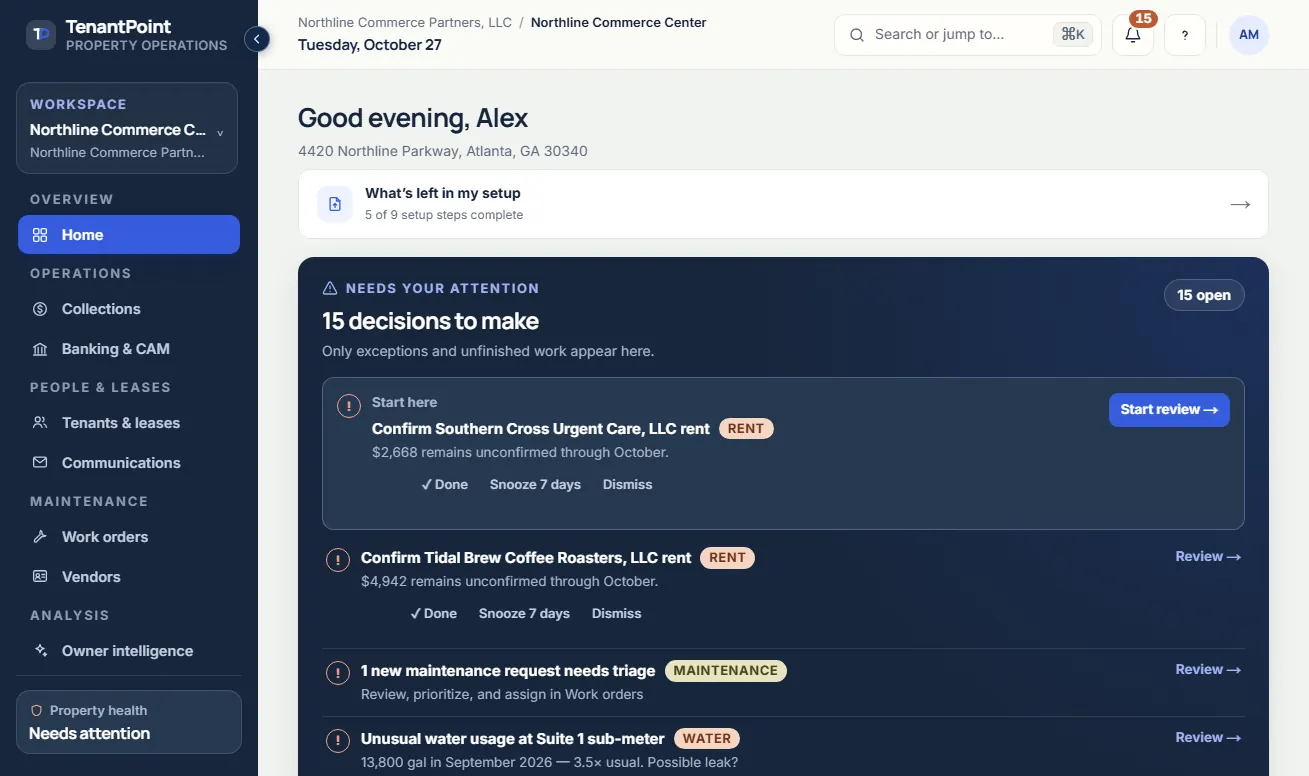
TenantPoint's current Home screen: a Needs your attention list of rent to confirm, maintenance to triage and unusual water usage
Current TenantPoint interface with fictional demonstration records.

See a month of property work, screen by screen.

Five parts of the same workspace. Rent, CAM, the tenant record and the portal’s lease view all read from the lease terms you confirmed.

Each month’s rent, CAM and fees for every tenant, with the payments you recorded and any balance carried from earlier months.

More on rent roll and collections
  • A rent roll built from confirmed lease schedules, step-ups included, with CSV export.
  • Open balances by tenant and month, with the payments you record against them.
  • Late fees proposed only from late-fee terms you confirmed, and posted when you approve them.
TenantPoint Collections showing the tenants that need attention this month, each with the month's scheduled and recorded amounts, the balance due on the account, and a status
Current TenantPoint interface with fictional demonstration records.

One CAM year, from estimate to true-up.

Most strip-center leases pass common area costs through to tenants. TenantPoint keeps the estimate, the monthly billing and the year-end reconciliation tied to the same CAM setup you confirm from each lease, and flags any share that differs from what the lease states.

How CAM reconciliation works
  1. Before the year starts

    Start from the CAM in each lease

    Each tenant is billed the monthly CAM estimate written in their lease until you approve a new one. You can also enter last year’s actual CAM total as the baseline this year’s spending is compared against.

  2. January to December

    Bill the estimate with rent

    Each tenant’s CAM estimate is part of their monthly charge, so Collections and the rent roll show rent and CAM together. Recoverable expenses build up as you review the property’s bank activity and confirm which costs are CAM-eligible.

  3. At year-end

    Reconcile the year

    Each tenant’s actual share is worked out after their lease’s exclusions and any cap you confirmed. TenantPoint proposes a true-up charge or credit for each tenant whose estimates were off, and posts it only when you confirm. Each CAM notice PDF you make is kept as a numbered version.

    TenantPoint then suggests next year’s estimates from the recoverable spending you recorded, for you to approve. On properties set up with separate CAM pools, you enter each tenant’s estimate yourself.

The property’s day-to-day work, in one workspace.

Each area is linked to the same property and tenant records, and rent, CAM and the tenant portal use the lease terms you confirmed.

Money

  • Rent roll and collections

    Scheduled rent, open balances and recorded payments, from confirmed lease terms.

  • CAM and recoveries

    Pools, shares, exclusions, caps and the year-end true-up for each tenant.

  • Banking and reconciliation

    Import bank statements (CSV, OFX or QFX), categorize activity and review suggested tenant-payment matches.

    Turn on statement imports in Settings → Integrations. The trial includes one import.

  • Financial reporting

    Operating statement and NOI by building, on a cash or billed basis, with PDF and CSV export.

Leases and tenants

  • Commercial leases

    Lease PDFs read by AI and checked by you, with rent steps, options and key dates on record.

  • Tenant portal

    Each tenant’s balance, lease summary, statements, shared documents and requests.

  • Tenant bank payments

    Tenants pay an open balance by ACH through Stripe.

    Eligible plans, when enabled

Building and connections

Explore features by workflow

Start with one property and one signed lease.

  1. Add the property and upload a lease

    Add the building and its suites, then upload a signed lease PDF. The trial includes three lease uploads, and the 21 days start when you add your first property.

  2. Confirm the terms

    Check the rent schedule, CAM details, late-fee terms and dates TenantPoint read against the signed lease. Nothing becomes active until you confirm it.

  3. Run the month

    Record payments and follow open balances in Collections, keep CAM current as you review bank activity and flag CAM-eligible costs, and invite tenants to their portal.

Questions owners ask first.

Plans, tenant payments, and what TenantPoint is not.

Who is TenantPoint built for?

Commercial owners, owner-operators and small management teams running strip centers, neighborhood retail and small commercial portfolios: properties where each lease has its own rent steps, CAM share and recovery terms.

Do I need a credit card to try it?

No. The 21-day trial needs no credit card, and the 21 days start when you add your first property. Paid plans start at $99/month for the Owner plan.

Can tenants pay rent by bank?

Yes, on Portfolio, Professional and configured Custom plans, once the landlord completes Stripe onboarding and ACH is turned on. Tenant ACH is not included in the Trial or Owner plan. The landlord pays a $1 TenantPoint fee per successful ACH payment, plus Stripe’s separate processing fees. ACH payments can take several business days to complete and can fail or be returned.

Does TenantPoint replace QuickBooks?

No. TenantPoint runs the property work: leases, rent, CAM, bank review and operating statements. It is not a general ledger or a tax-preparation tool. On the Portfolio plan and up, it can send selected accounting activity to QuickBooks Online where that connection is available.

How do I get started?

Start the 21-day free trial and add your first property, or book a walkthrough to go through TenantPoint with us using your own property questions. The getting-started guides in Documentation cover each step, from the first lease upload on.
Put your next lease to work.

No credit card, and the 21 days start when you add your first property. See how we handle your data in the Trust Center.