TenantPoint launch checklist
A first-day checklist for taking a real commercial property from an empty workspace to a usable daily operating record.
#Before you start
Have your property and suite list, current signed leases and amendments, tenant contact emails and a recent bank statement ready. Decide who will administer the workspace. Explore the separate sample-data experience first if you want to learn the screens; do not treat fictional balances or tenants as real accounting records.
- Choose a plan by properties, tenant spaces and team size, not just monthly price.
- The no-card 21-day trial begins when the first property is created. Paid checkout starts billing immediately.
- Only connect accounts and invite real tenants when the underlying records have been checked.
#1. Establish the property record
Choose Set up my company, complete the company and property wizard, and review before creating the workspace. Open Settings → Properties and classify every space correctly, including vacant and HOUSE spaces. Use the property switcher before editing a second building.
- Property name and address checked.
- Suite names, sizes and occupancy checked.
- Team roles and access reviewed in Settings → Team.
#2. Verify the lease and rent baseline
Open Leases & onboarding, upload the signed lease PDF and amendments, and compare the proposed fields with the source document before Verify & create tenant. Review current rent, future rent steps, CAM rules, dates, contact details and important clauses. Extraction is an aid, not a guarantee of legal or accounting accuracy.
- Every occupied space has the right tenant and lease.
- Rent roll agrees with the current signed schedules.
- Opening balances, recorded payments and late-fee terms reviewed before collection activity.
#3. Bring money and CAM into view
Review bank-feed availability under Settings → Integrations. Connect only authorized accounts, or enable optional manual statement imports and upload CSV, OFX or QFX in Banking. Categorize and allocate activity deliberately. Then review CAM sharing, participation and caps against each lease before confirming a calculation or true-up.
- Each bank account has the correct property and purpose.
- No deposit is counted twice as a new rent payment.
- CAM results and statements reviewed before posting or sending.
#4. Connect the tenant experience
Check each tenant's contact email, then use Invite to tenant portal on the tenant record. Review the Portal sections and shared documents. If your eligible plan includes tenant ACH, complete Stripe setup in Settings → Integrations first; wait for Payments enabled and ACH enabled before telling tenants to pay by bank.
- Tenant sees only their own permitted records.
- Landlord payment readiness checked; no real payment is required to finish this checklist.
- If ACH is not ready, communicate your existing payment method clearly.
#5. Finish the operating routine
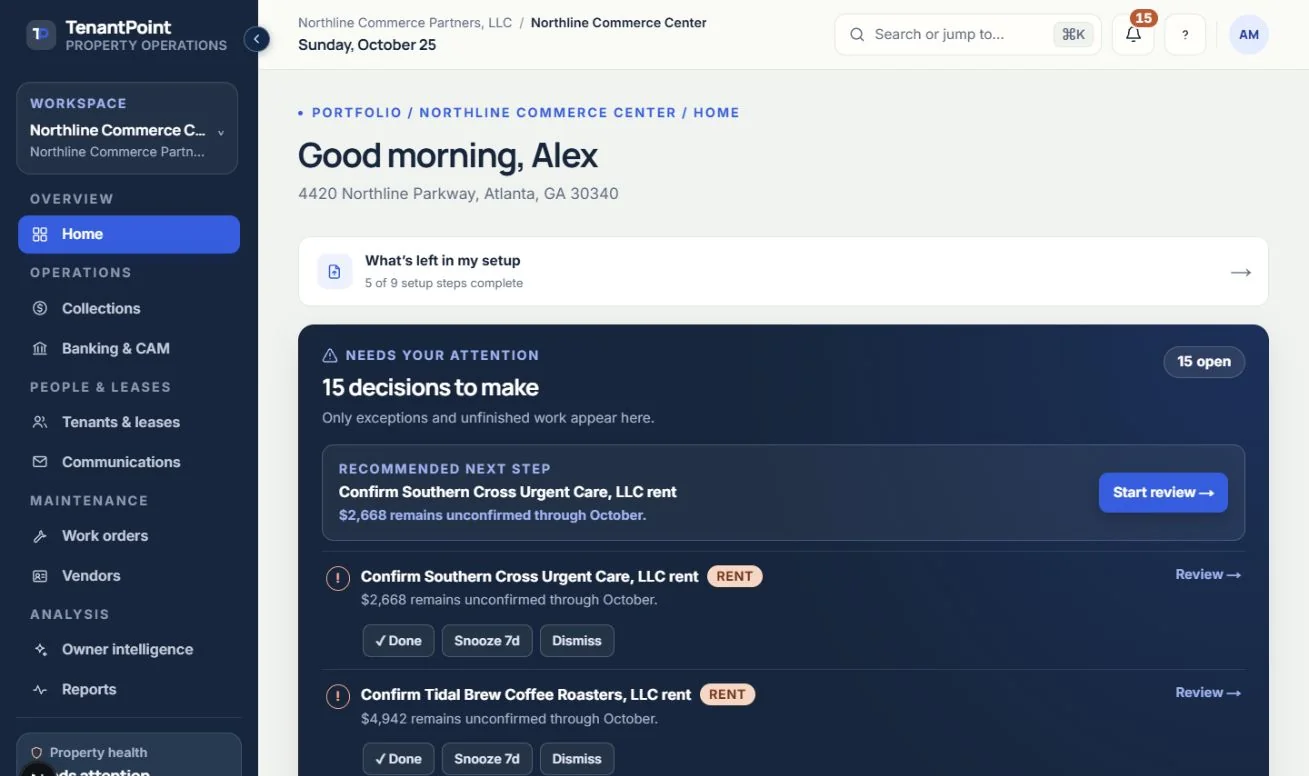
Add active vendors and create your first work order. Review communications and automatic notification settings before enabling them. If included in your plan, connect QuickBooks, complete mappings and intentionally choose what to send. Start each day on Home, then review Collections, bank activity and open work orders.
- Rent roll and operating statement reviewed for the selected property and period.
- QuickBooks Sync Activity reviewed after the first intentional sync.
- Support contact and team responsibilities documented.
#Expected result
You have an accurate property and lease baseline, a reviewed financial workflow, and a clear tenant-support path. It is fine to launch with manual statement imports or without online collection while a provider checks the account. Missing bank, Stripe or QuickBooks authorization is not a reason to invent transactions or bypass a permission.
#If something does not match
Check the selected property, month, lease and role first. Compare a balance with its underlying charges rather than editing numbers to match a screenshot. For provider problems use the relevant connection status and troubleshooting guide. Support needs the page, time and error message—not passwords, bank details, API keys or full lease documents.
See the current workflow
These captures use controlled sample or internal demo records, not customer records. Available controls depend on your role, plan and account readiness.